
No products in the cart.

Jinlong
Top Free DTF RIP Software for Epson Printers Best Options 2026
If you’re diving into DTF printing with Epson printers like the i3200 or i1600, you already know that having the right RIP software isn’t just a bonus—it’s a must. But here’s the catch: premium RIPs like AcroRIP can quickly eat into your budget. That’s why finding top free DTF RIP software options for Epson DTF printers is a game changer for beginners and small businesses looking to master white ink layering, color accuracy, and flawless transfers without breaking the bank. In this post, we cut through the noise to spotlight realistic, no-cost (or near-free) tools that actually work—so you can get started on your DTF journey with confidence and save your resources for what matters most.
What Is DTF RIP Software and Why Epson Users Need It
DTF RIP software is a specialized tool that prepares your designs for direct-to-film (DTF) printing by managing how inks get laid down on the transfer film. Simply put, RIP stands for Raster Image Processor, which translates your artwork into detailed print instructions that your Epson DTF printer understands.
For Epson users, a good DTF RIP is essential because it handles tasks that normal printing software can’t. These include:
- White Ink Generation: Creating a white underbase layer so colors pop on dark garments.
- Underbase Masking: Perfecting where white ink goes to avoid unnecessary ink use or film issues.
- Color Profiling: Adjusting colors so they print true to your design.
- Queuing Multiple Jobs: Managing several prints without constant manual setup.
- Ink Limiting: Controlling how much ink is used to prevent smudging or long curing times.
Epson printers used for DTF often need modified drivers capable of handling both CMYK and white ink channels simultaneously. Aligning the film correctly and syncing these ink layers is another technical step that RIP software simplifies. Without the right DTF RIP software, getting quality prints from your Epson DTF printer can be hit or miss, leading to wasted ink and film.
Whether you’re running an Epson i3200 or an i1600 DTF printer, choosing the right software makes all the difference in print quality and workflow efficiency.
Challenges with Free RIP Options for Epson DTF Printers
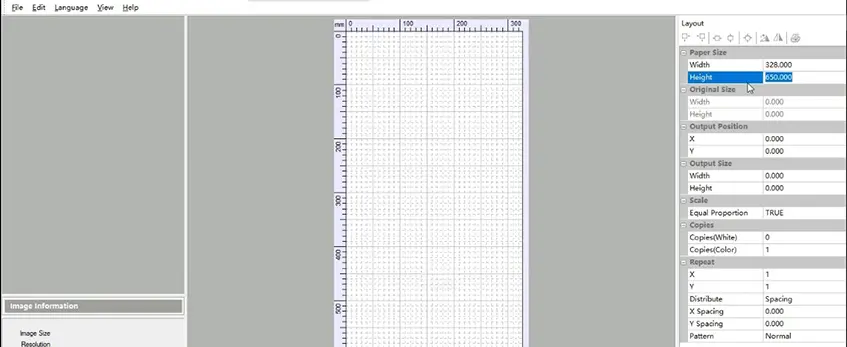
Finding truly free DTF RIP software for Epson printers is tricky. Many so-called “free” options are actually:
- Limited trials that stop working or restrict features after a few uses
- Outdated versions that don’t support the latest Epson models or ink setups
- Buggy community mods made by enthusiasts but often unstable or lacking proper white ink handling
Paid RIP software dominates the scene because it offers:
- Reliable performance
- Full support for white ink generation and underbase masking
- Advanced features like ink limiting, color profiling, and job queuing
Using free or cracked RIP versions comes with risks:
| Risk | Description |
|---|---|
| Malware | Unknown sources can carry viruses or spyware |
| Poor support | No official help or updates |
| Inconsistent prints | Color shifts, banding, or weak white underbases |
If you’re committed to quality and steady production, relying on free options might cause more headaches than savings. For Epson DTF printers, it’s often safer to start with trusted free tests but plan on upgrading to a paid RIP for consistent results.
For guidance on starting your DTF print setup and troubleshooting common issues like print quality, check out this detailed Jinlong DTF common problems guide.
Top Free and Near-Free DTF RIP Software Options for Epson Printers
Finding the right free DTF RIP software for Epson can be tricky, so here’s a quick overview of the top options that are popular, reliable, and budget-friendly.
| Software | Key Features | Compatibility | Pros | Cons |
|---|---|---|---|---|
| JINLONG FreePrint | Open-source mod of AcroRIP; white ink channel control; custom underbase | Epson i3200, i1600, other Epson DTF models | Safe to download, powerful white ink setup, active community support | |
| PrintFab Free Edition | Cross-platform (Windows/Mac); basic layering; limited white and gloss | Most Epson printers | Easy basic RIP tasks, pretty good color control | White ink and gloss layering limited |
| BlackBox RIP | Fast RIP speed; works well with Epson A3+ models; Photoshop integration | Epson A3+ series | Simple interface, efficient for small jobs | Limited features, not fully featured for high volume |
| Epson Garment Creator | Epson’s official RIP, user-friendly; supports DTF adaptation | Compatible Epson printers | Reliable, easy to use, solid underbase handling | Limited advanced settings, Epson-only |
| Other Mentions | UniNet Basic RIP, Cadlink Digital Factory (trial), community mods | Varies | Trial for testing, some custom tweaks available | Trial limits, sometimes unstable |
Brief Notes and Tips
- FreePrint is the closest you get to an AcroRIP free alternative, offering customization essential for DTF printing software no cost needs. Just be prepared for a steeper learning curve as you manually configure white ink and underbase settings.
- PrintFab Free Edition is a great starter if you want basic cross-platform compatibility but expect limits on white ink layering and gloss—important for vivid DTF prints.
- BlackBox RIP fits users with Epson A3+ printers needing speed and simplicity. It pairs well with Photoshop for direct print workflows but is less suited for large-scale businesses.
- Epson Garment Creator is ideal if you prefer official support and easier setup, especially if you’re running Epson’s DTF-capable models.
For full success with these software options, focus on pairing them with high-quality jinlong DTF inks and proper TPU powder application — essential for maximizing print durability and adhesion (link to TPU powder properties).
This selection covers a range of Epson models and user needs, striking a balance between compatibility, underbase white quality, speed, and beginner-friendliness. Start with a free tool that suits your printer and workflow before considering paid upgrades.
How to Choose the Right Free RIP for Your Epson DTF Setup
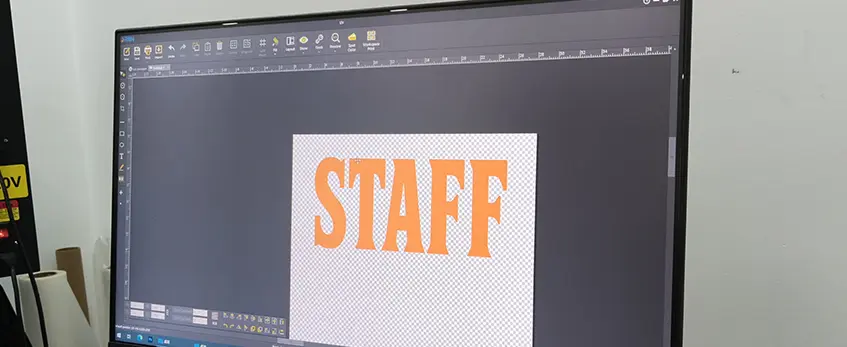
Picking the best free DTF RIP software for your Epson printer depends on a few key factors. Here’s a quick guide to help you decide:
| Factor | What to Consider | Why It Matters |
|---|---|---|
| Printer Model | Check if the RIP supports your Epson model (e.g., i3200, i1600 | Ensures full compatibility and better print quality |
| Printing Volume | Hobby use or small business? | Free RIPs may handle low volume well; businesses might need paid solutions for speed and reliability |
| Operating System | Windows, macOS, or Linux? | Some free RIP software is cross-platform, others are not |
| Features Needed | Nesting, ICC color profiles, white underbase control | Advanced functions improve efficiency and print accuracy |
For anyone new to Epson DTF printing, starting with trusted free options like JINLONG Garment Creator is smart. These tested RIPs deliver solid results without an upfront cost. As your business grows or your needs get more complex, consider paid RIP solutions that sync well with jinlong DTF printers and inks.
By evaluating your setup and print goals, you can avoid wasting time on trial RIPs that aren’t a good fit. This keeps your workflow smooth and print quality consistent from the get-go.
Step-by-Step Setup Guide for the Best Free DTF RIP Software Options
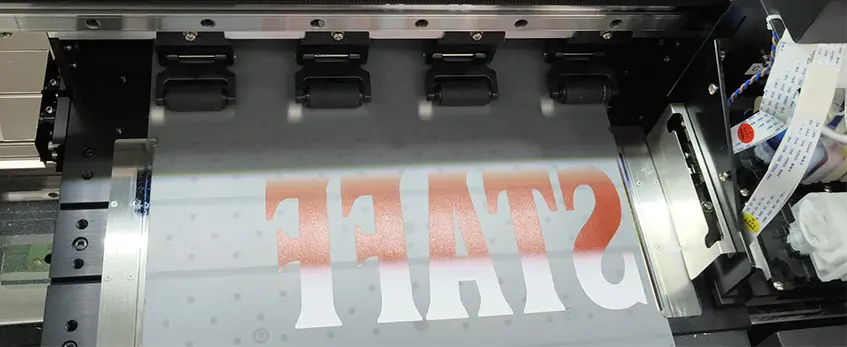
Setting up free DTF RIP software for your Epson printer might sound complex, but following a clear workflow makes it manageable—even for beginners. Here’s a straightforward process to get you started and achieve quality prints:
| Step | Action | Tips & Notes |
|---|---|---|
| 1. Install Epson Drivers | Use the official Epson drivers for your model (e.g., i3200, i1600) | Prevents miscommunication between printer and RIP software |
| 2. Install the RIP Software | Download and install your chosen free RIP (JINLONG RIIN169.exe , JINLONG BetterPrinterApp-XP600-1H-W-EN-1.0.1.95.exe) | Always get from official or trusted sources for safety |
| 3. Configure White Ink Channel | Set your white underbase channel correctly, critical for DTF white ink layering | manually enable white channel in settings; check white underbase strength |
| 4. Load Test Patterns | Print test files to check white ink density and alignment on film | Helps catch banding or white gaps before production |
| 5. Calibrate Color Profiles | Adjust color profiles specifically for jinlong DTF inks you use | Refer to jinlong\’s recommended ICC profiles for best accuracy |
| 6. Adjust Ink Limits & Halftones | Fine-tune ink limits to avoid oversaturation; set halftone dots for smooth gradients | Prevents ink bleeding and improves print durability |
| 7. Perform Trial Prints | Run sample prints on films to evaluate print quality and ink adherence | Use proper curing and powder techniques as per jinlong DTF guidelines |
Specific Setup Tips for Top Free RIPs
JINLONG (AcroRIP-based open-source mod):
- Manually activate white ink layers in print settings.
- Use test charts to fine-tune underbase strength and opacity.
- Best with Epson printers because it supports CMYK+white channels fully.
- Simple interface ideal for Epson printers.
- Integrates well with Photoshop for precise editing.
- Default white setup works; still test for fine-tuning.
Following these steps and paying attention to white channel setup will dramatically improve your print results on Epson DTF printers. If you use jinlong DTF inks, always calibrate colors using their recommended settings for crisp, vibrant transfers.
For more on selecting the right DTF printer and inks, check out our detailed guide on best DTF transfer printer features in 2026.
Tips to Maximize Print Quality with Free RIP Software
Getting the best results from free DTF RIP software for Epson printers means dialing in a few key areas. Start by optimizing ink limits—too much ink can cause smudging or bleeding, while too little leads to dull prints. Adjust halftone settings carefully; finer halftones boost detail but may slow printing, so find the sweet spot for your design and fabric type.
Proper film handling is critical. Keep your DTF film clean and dry, avoid touching the printable side, and store it flat to prevent curling. After printing, apply powder evenly and tap off excess to ensure solid adhesion. Following this, curing techniques matter—a good heat press temperature and time will fix the ink and powder perfectly, preventing cracks or peeling.
Common print issues on Epson DTF setups include:
- Banding: Usually fixed by printhead cleaning or adjusting speed and resolution settings.
- White gaps: Often from incorrect white ink channel setup or insufficient powder coverage.
- Color shifting: Can be reduced through proper color calibration and profiling with your specific Jinlong DTF inks.
For step-by-step advice on configuring your Epson printer, check out our DTF printer A3 setup guide with ink, film, powder, and heat press tips. Following these practices helps maximize print quality with free DTF RIP software, making your Epson DTF printer output professional transfers every time.
When to Upgrade from Free to Paid RIP Software
Free DTF RIP software for Epson printers is a great starting point, especially if you’re new to DTF printing or running a small operation. However, there are clear signs you should consider upgrading to a paid RIP:
- Inconsistent Print Quality: If your prints start showing white gaps, color shifts, or lack vibrancy even after tweaking settings, a more advanced RIP can handle white ink generation and color profiling better.
- Excessive Setup Time: When you spend more time adjusting software settings than printing, it\’s a sign that automation and better job queuing in paid solutions are needed.
- Scaling Production Needs: For growing businesses that require faster processing, multi-job queuing, and professional-level color management, free software often falls short.
Top paid options like Cadlink Digital Factory and AcroRIP are industry favorites. They offer refined white underbase control, advanced ICC profiling, and Epson printer-specific drivers that ensure vibrant and durable transfers. These solutions integrate well with popular Epson DTF models and inks like jinlong DTF, supporting higher volume output without sacrificing quality.
If you’ve outgrown free printer software but want reliable, consistent results backed by vendor support, investing in a paid RIP is worth it. For more in-depth advice on building a DTF setup that fits your needs, check out our DTF printer A3 complete buyer’s guide.


 English
 Español
 Deutsch
 Français