
No products in the cart.

Jinlong
Jinlong Troubleshooting Guide: How to Quickly Resolve Common Printing Issues During Peak Production Seasons
Introduction
In peak production seasons, every minute of downtime can translate into lost revenue and delayed shipments. Industrial printers, like the Jinlong series, are designed for continuous operation — yet even the most reliable systems can experience disruptions under heavy workloads.
This guide is written for production managers, workshop supervisors, and front-line operators who need fast, reliable, and field-proven troubleshooting steps to get their Jinlong printers back online quickly.
Our approach is simple: stay calm, think logically, and act systematically.
Each section below follows a clear pattern — Symptom → Possible Causes → Step-by-Step Solution → Prevention Tips — so you can move from detection to resolution with confidence.
A. Ink Supply and Print Quality Issues
1. Symptom: Faded Colors or Missing Lines
The print appears pale, with parts of the image missing, or color intensity significantly reduced.
Possible Causes
- Air bubbles or clogs in the ink line
- Expired or incompatible ink cartridges
- Blocked printhead nozzles due to dried ink
- Incorrect negative pressure in the ink system
Step-by-Step Solution
- Pause the printer immediately to prevent further air intake.
- Check ink level and cartridge condition. Replace if the ink is older than six months or appears contaminated.
- Perform an automatic nozzle cleaning cycle. If print quality doesn’t improve, proceed to manual cleaning.
- Inspect ink tubes for trapped air bubbles — gently purge the ink line using the printer’s maintenance tool.
- Verify system pressure. Refer to the Jinlong maintenance panel — ensure pressure is within the recommended range (usually -3.0 to -4.5 kPa).
- Run a test print to confirm color uniformity.

Prevention Tips
- Perform a daily nozzle check before production starts.
- Store ink at a stable temperature (18–25°C) and shake sealed cartridges gently before installation.
- Run a 5-minute idle purge at the end of each shift to prevent nozzle drying.
2. Symptom: Ink Spattering or Over-Saturation
Drops of ink appear around the printed image or on adjacent areas.
Possible Causes
- Printhead too close to media surface
- Humidity too high in the workshop
- Incorrect waveform or voltage setting
- Excessive ink density in color profile settings
Step-by-Step Solution
- Check printhead gap — maintain at least 1.5–2.0 mm clearance from the substrate.
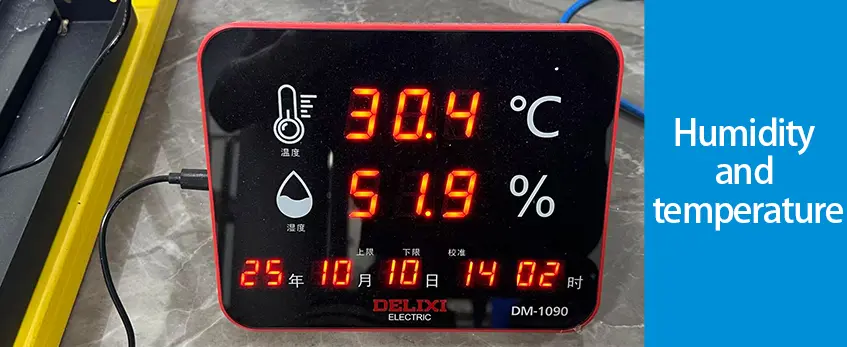
- Measure humidity and temperature. Maintain 45–60% RH and 22–28°C for optimal stability.
- Inspect grounding and static control. Static buildup can cause misfiring of ink droplets.
- Review RIP software color settings — reduce ink limit by 10–15% if oversaturation persists.
Prevention Tips
- Install a dehumidifier or air dryer in the printing room.
- Clean the printhead daily using official Jinlong cleaning solution.
- Keep static eliminators active, especially in winter or dry regions.
B. Color Deviation and Inconsistent Output
1. Symptom: Color Mismatch Between Prints
Same design produces different hues or tones between batches.
Possible Causes
- Outdated ICC profile or incorrect color calibration
- Ink batch inconsistency
- Environmental temperature shifts affecting viscosity
- Software color management disabled
Step-by-Step Solution
- Verify ICC profile — ensure the correct Jinlong printer model and media type are selected.
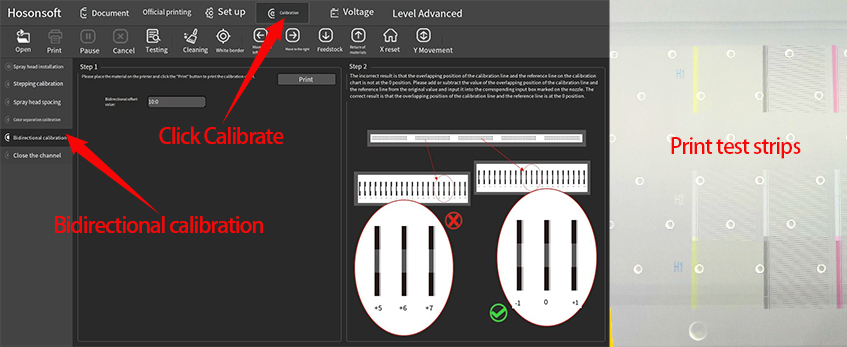
- Perform color calibration using the built-in spectrophotometer or calibration chart.
- Mix inks consistently from the same lot when possible.
- Stabilize environment — allow printer to acclimate for 30 minutes before large-scale production.
Prevention Tips
- Recalibrate every Monday morning or after major maintenance.
- Keep color management enabled in RIP software at all times.
- Record temperature and humidity logs to correlate with color drift trends.
C. Mechanical and Media Handling Problems
1. Symptom: Media Skewing or Misalignment
Paper or film drifts sideways during printing, causing image distortion.
Possible Causes
- Uneven pinch roller pressure
- Improper media loading
- Dirty or worn feed rollers
- Incorrect tension setting on take-up reel
Step-by-Step Solution
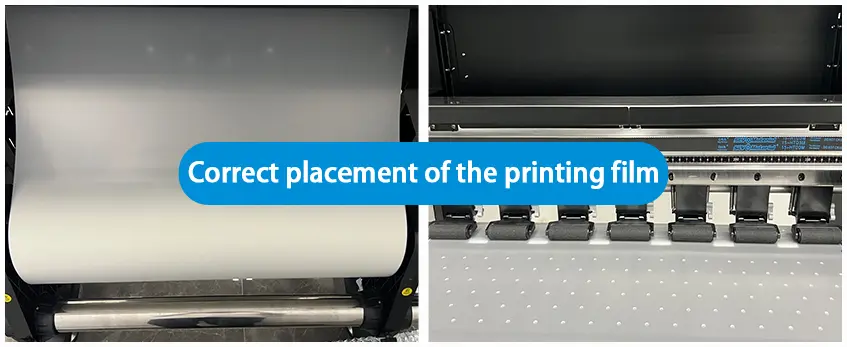
- Unload the media and inspect roller surfaces — clean with isopropyl alcohol.
- Reload carefully, ensuring equal tension and proper edge alignment.
- Adjust pinch roller pressure symmetrically from both sides.
- Run a short alignment test using the calibration grid pattern.
- Inspect take-up tension motor for irregular pulling force.
Prevention Tips
- Clean rollers every 48 hours of continuous operation.
- Replace worn rollers immediately when slippage is detected.
- Train operators to load media using the two-person alignment method for wide-format rolls.
D. Software and Connectivity Failures
1. Symptom: Printer Not Responding to Commands
RIP software shows “Offline” or “Communication Error.”
Possible Causes
- Faulty USB or LAN cable
- IP address conflict or network timeout
- Driver corruption
- Printer firmware mismatch
Step-by-Step Solution
- Restart both printer and computer.
- Check cable connections and replace any suspect cables.
- Ping the printer IP address. If unreachable, reassign a static IP within the same subnet.
- Reinstall printer driver using the official Jinlong driver package.
- Check firmware version — update via official maintenance utility if required.
Prevention Tips
- Use shielded LAN cables no longer than 5 meters.
- Keep firmware and software synchronized to the same version family.
- Label each printer with its dedicated IP to prevent accidental conflicts.
E. Safety Reminders
⚠️ Always disconnect power before accessing internal components or the ink system.
⚠️ Avoid touching printhead surfaces directly — electrostatic discharge may cause permanent damage.
⚠️ Use only Jinlong-approved inks and cleaning solutions to maintain warranty and prevent chemical incompatibility.
Conclusion: Prevention Is Better Than Recovery
A well-maintained Jinlong printer can run for thousands of hours without interruption. The key lies in routine checks, stable environmental control, and consistent operator training.
To summarize, here’s a quick operational checklist:
Daily Maintenance Checklist
- ✅ Nozzle test print before starting production
- ✅ Clean printhead and wiper after each shift
- ✅ Maintain temperature (22–28°C) and humidity (45–60%)
- ✅ Inspect media alignment and roller condition
- ✅ Log print counts and system alerts
When in doubt or if the problem persists after following these steps, contact official Jinlong Technical Support for remote diagnostics or on-site service.
Remember: a calm, methodical approach always beats panic — even during the busiest season.
Recommended products
![JL-DTF604P DTF Digital Printer [Pro Series]](https://jinlongprints.com/wp-content/uploads/2025/07/JL-DTF604P.webp)
JL-DTF604P DTF Digital Printer [Pro Series]
View more View moreDtf Transfer Film 60cm Double [Pro Series]
View more View more原价为:$30.00。$27.30当前价格为:$27.30。TPU DTF Hot melt adhesive powder 1KG [Pro Series]
View more View more原价为:$6.00。$4.20当前价格为:$4.20。DTF Ink Cmyk 1L/1000ml [Pro Series]
View more View more原价为:$25.00。$17.60当前价格为:$17.60。Dtf Transfer Film A3 Single [Pro Series]
View more View more原价为:$0.07。$0.04当前价格为:$0.04。
![Dtf Transfer Film 60cm Double [Pro Series]](https://jinlongprints.com/wp-content/uploads/2025/07/1号膜-JL-f604p-d(双面).webp)
![TPU DTF Hot melt adhesive powder 1KG [Pro Series]](https://jinlongprints.com/wp-content/uploads/2025/07/71a8f0d4cb402a0fa9816006370b80d.jpg)
![DTF Ink Cmyk 1L/1000ml [Pro Series]](https://jinlongprints.com/wp-content/uploads/2025/07/JL-ink604p.webp)
![Dtf Transfer Film A3 Single [Pro Series]](https://jinlongprints.com/wp-content/uploads/2025/08/A3单面.webp)


 English
 Español
 Deutsch
 Français