

JINLONG Design Tips: 5 Photoshop & Illustrator Techniques to Make Your DTF Artwork Stand Out
DTF (Direct-to-Film) printing has revolutionized apparel decoration — but as every designer knows, the beauty of your final print lives or dies in your artwork preparation.
Even the best printer can’t rescue a poorly prepared design: jagged edges, weak gradients, missing whites, or muddy colors often come from small mistakes in Photoshop or Illustrator.
After more than a decade in the DTF and graphic design industry, I’ve distilled five essential PS/AI techniques that can dramatically improve your print quality.
Each tip is tested, practical, and aimed at one goal — helping you achieve crisp, vivid, production-ready DTF artwork.
1. Perfect Your White Ink Layer — the Unsung Hero of DTF
Problem:
Many beginners forget that the white ink layer isn’t just a background — it’s a structural base that determines the opacity and color vibrancy of your print. If mismanaged, your reds may turn dull or your blacks look washed out.
Core Principle:
The white layer must be precise yet slightly contracted to prevent halos, bleeding, and edge fuzziness during heat transfer.
Photoshop Steps:
- Separate your artwork from the background (use Select > Subject or Color Range).
- Create a new channel named “White.”
- Fill the selected area with white (Shift + F5 → Fill with White).
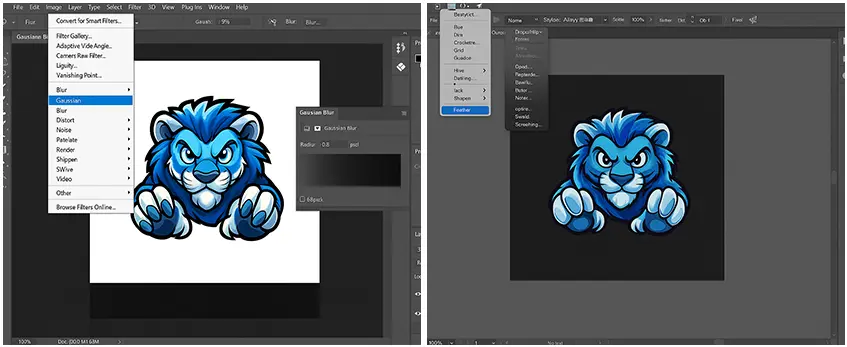
- Apply Gaussian Blur (0.5–1 px) for smoother edges.
- Contract the selection by 1–2 pixels (Select > Modify > Contract).
Illustrator Steps:
- Select all design shapes.
- Duplicate (Ctrl + C → Ctrl + F).
- Unite them with the Pathfinder > Unite function.
- Set the new shape to white fill, no stroke.
- Use Object > Path > Offset Path (-0.2 to -0.5 mm) to slightly shrink.
Result:
Sharper edge definition and stronger, more consistent color saturation across any fabric.

2. Master Color Management with ICC Profiles
Problem:
Designs that look great on screen can print disappointingly dull or oversaturated on film because of mismatched color spaces.
Core Principle:
Always design in the same ICC profile used by your RIP software. Most DTF workflows prefer sRGB IEC61966-2.1 for predictable, punchy color output.
Photoshop Steps:
- Go to Edit > Color Settings.
- Choose “sRGB IEC61966-2.1” as your working RGB space.
- Enable “Preserve Embedded Profiles.”
- Soft-proof your design (View > Proof Setup > Custom) to preview how it prints.
Illustrator Steps:
- Set Color Settings to sRGB.
- Use View > Proof Colors (Ctrl + Y) to simulate printing output.
- Avoid using CMYK color values unless your RIP specifically requires it.
Pro Tip:
Ask your printer for their ICC profile and test it on one design. The difference in tone accuracy can be dramatic.

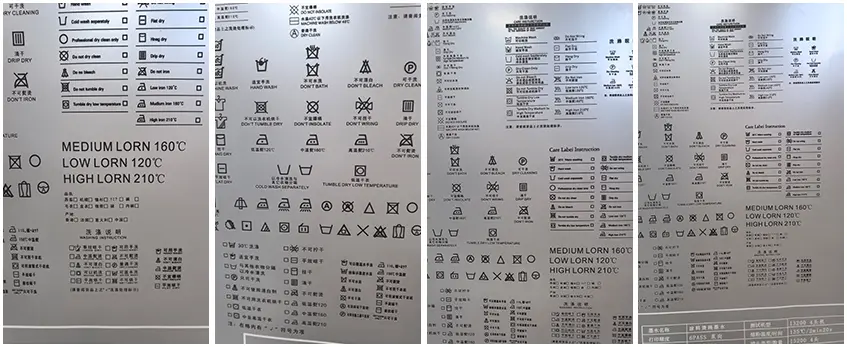
3. Clean Small Texts and Fine Lines Without Losing Detail
Problem:
Tiny letters and thin strokes often blur or break after heat pressing, especially on stretchy fabrics.
Core Principle:
Avoid semi-transparent edges and ensure every fine element is fully opaque.
Photoshop Steps:
- Zoom in 400%.
- Merge small text layers (Ctrl + E).
- Add a Stroke (0.3–0.5 pt, Inside) in a matching color to reinforce edges.
- Flatten semi-transparent pixels (Layer > Matting > Remove Black/White Matte).
Illustrator Steps:
- Convert text to outlines (Ctrl + Shift + O).
- Apply Offset Path (0.1–0.3 mm) to slightly thicken.
- Check your minimum line width — for DTF, it should be at least 0.25 mm.
Result:
Text stays legible, lines stay clean, and you avoid that “melted” look on the final print.
4. Manage Gradients and Semi-Transparency the Smart Way
Problem:
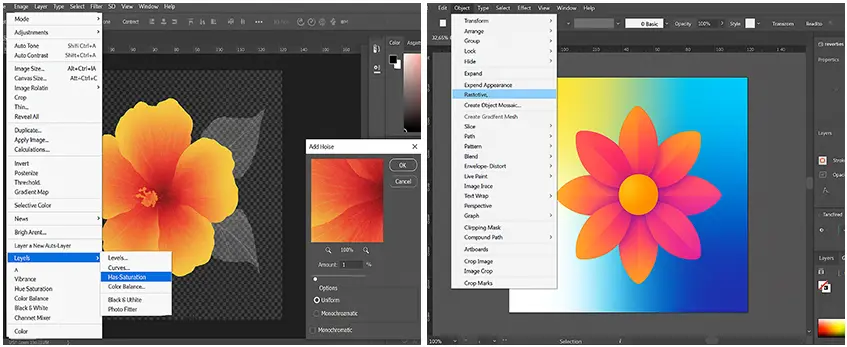
Gradients and transparent layers often print with banding or patchy opacity, especially on light colors.
Core Principle:
DTF inks can’t reproduce transparency the same way as screens — you must rasterize and control tone manually.
Photoshop Steps:
- Flatten transparent areas by adding a solid background layer beneath.
- Use Layer > New Adjustment Layer > Levels to fine-tune contrast.
- Apply Noise (0.5–1%) to break smooth gradient bands and improve realism.
Illustrator Steps:
- Use Object > Rasterize (300 ppi, Transparent Background) for gradient-heavy layers.
- Expand gradient meshes before exporting.
- Always preview in Overprint mode to catch potential color shifts.
Pro Tip:
Save gradient sections as PNG with transparency and reimport — this helps your RIP engine read the alpha channel properly.
5. Use Feathered Masks for Smooth Blending Edges
Problem:
Hard edges between artwork and background create visible borders after transfer, especially on dark shirts.
Core Principle:
Feathering the mask ensures a natural blend while keeping your artwork intact.
Photoshop Steps:
- Create a layer mask on your design.
- Select the mask → Filter > Blur > Gaussian Blur (0.5–1 px).
- Adjust opacity around 95–98% for smoother integration.
- Check the result on both black and white backgrounds before export.
Illustrator Steps:
- Use Opacity Masks with 1–2 px feather via Effect > Stylize > Feather.
- Avoid excessive blur; DTF transfers emphasize edge detail.
- Test print small samples to find your sweet spot.
Result:
Edges disappear into the garment seamlessly, giving your prints a premium, “floating” finish.
Conclusion: From File to Film, Every Pixel Matters
DTF printing rewards precision. These five techniques — white layer control, color management, fine-line strengthening, smart gradient handling, and feathered edge blending — aren’t flashy, but they form the backbone of professional print preparation.
Whether you’re producing for clients or your own apparel brand, these optimizations will make your designs print-ready, reliable, and stunning straight out of the press.
Stay tuned for more JINLONG Design Tips, where we’ll explore advanced topics like underbase optimization and RIP software workflows.
Your artwork deserves the same craftsmanship as the garment it’s printed on — and it starts right here, in your design file.
Recommended products
-
Dtf Transfer Film 60cm Single [Pro Series]
View more View more原价为:$28.00。$25.10当前价格为:$25.10。 -
TPU DTF Hot melt adhesive powder 1KG [Pro Series]
View more View more原价为:$6.00。$4.20当前价格为:$4.20。 -
Dtf Transfer Film A3 Double [Pro Series]
View more View more原价为:$0.08。$0.05当前价格为:$0.05。 -
DTF Ink Cmyk 1L/1000ml [Pro Series]
View more View more原价为:$25.00。$17.60当前价格为:$17.60。 -

JL-DTF301B A3 DTF Printer XP600 【Applicable to beginner sets】
View more View more
![Dtf Transfer Film 60cm Single [Pro Series]](http://jinlongprints.com/wp-content/uploads/2025/07/1号膜-JL-f604p单面-300x300.webp)
![TPU DTF Hot melt adhesive powder 1KG [Pro Series]](http://jinlongprints.com/wp-content/uploads/2025/07/71a8f0d4cb402a0fa9816006370b80d-300x300.jpg)
![Dtf Transfer Film A3 Double [Pro Series]](http://jinlongprints.com/wp-content/uploads/2025/08/A3(双面)-300x300.webp)
![DTF Ink Cmyk 1L/1000ml [Pro Series]](http://jinlongprints.com/wp-content/uploads/2025/07/JL-ink604p-300x300.webp)



 English
  Español
  Deutsch
  Français