


Color Management Basics for Consistent Print Colors with ICC Profiles
Core Concepts You Must Understand First
Color management might sound fancy, but at its heart, it’s simply making sure the colors you see on your screen match what ends up printed. Without it, your bright reds can turn muddy, and blues may look washed out—frustrating for any print shop owner or designer.
What is Color Management?
Think of color management as a universal language between devices. Your monitor, printer, and inks all “speak” different color languages. Color management acts like a translator ensuring everyone’s on the same page so your final print looks just like your digital design.
RGB vs CMYK vs Spot Colors: Why It Can Go Wrong
- RGB (Red, Green, Blue) is what your screen uses—additive light to create color.
- CMYK (Cyan, Magenta, Yellow, Key/Black) is what printers use—subtractive inks combine to make colors.
- Spot colors are premixed inks for special shades like metallics or fluorescents.
Without good management, translating RGB screen colors into CMYK inks or spot colors often leads to colors “breaking”—meaning they look dull, off, or just different than expected because these color models don’t match perfectly.
Understanding Color Spaces: sRGB, Adobe RGB, Fogra, GRACoL, and Custom DTF Profiles
Color spaces are like color palettes defining what range of colors (gamut) you can use:
- sRGB: The most common and smallest gamut, standard for web and basic screens.
- Adobe RGB: Larger gamut, better for print, showing more vibrant greens and blues.
- Fogra and GRACoL: Industry-standard CMYK profiles used in Europe and the U.S. for offset printing.
- Custom DTF spaces: Specially tailored color spaces developed for Direct-to-Film (DTF) printing, accounting for specific inks, films, and substrates.
Using the wrong color space is like painting with the wrong palette—you can’t get accurate results.
ICC Profiles: Your Device-Specific Color “Translation Dictionaries”
ICC profiles are small data files that describe how a device reproduces color. Each device—monitor, printer, film, or ink—has its own profile. These profiles work together to translate colors accurately from your screen (RGB) to your DTF printer (CMYK or spot colors).
Think of ICC profiles as the bilingual dictionary that your workflow needs to prevent color confusion. Without them, you\’re guessing blind.
Key Takeaway:
Master these basics to avoid common pitfalls like color shifts or dull prints. Proper color management using the right color spaces and ICC profiles is your first step toward consistent, vibrant prints that match your creative vision every time.
Step 1: Calibrate and Profile Your Monitor
A calibrated monitor is absolutely non-negotiable when aiming for consistent print colors, especially with jinlong DTF printing. Without it, the colors you see on-screen won’t match what comes out of your printer, making color management less effective.
There are two main ways to calibrate your monitor: hardware calibration and software calibration. Software-only methods can help a little but can’t fully correct your screen’s color accuracy. For real reliability, you need hardware calibration devices that measure how your monitor displays colors and then adjust it accordingly.
For 2025, the top recommended tools for monitor calibration include the Datacolor SpyderX, X-Rite i1Display Pro, and the Calibrite Display Pro HL. These devices are trusted in the printing industry for delivering precise, repeatable results.
When calibrating for print work, set your monitor to:
- Color Temperature: 6500K (to match daylight conditions)
- Gamma: 2.2 (standard for most printing workflows)
- Brightness: about 120 cd/m² (to avoid too bright or too dark displays)
Having these exact settings ensures what you see on your calibrated screen gets closer to the final output, reducing costly color surprises and wasted materials. This step is the foundation of every solid DTF color management workflow.
Step 2: Use the Correct ICC Profile for Your jinlong DTF Printer + Ink + Film + Substrate
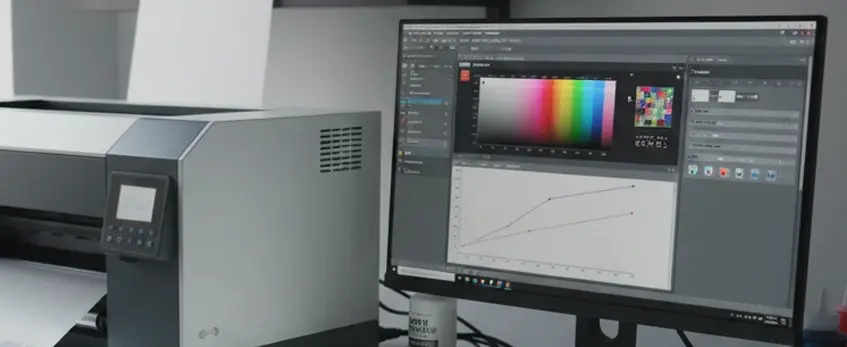
Using the right ICC profile is crucial for consistent colors in your jinlong DTF prints. You can choose between generic and custom ICC profiles. Generic profiles are a good starting point—they’re designed to work across several setups but might not perfectly match your specific ink, film, or substrate. Custom profiles, on the other hand, are tailored to your exact combination of printer, ink, film, and material, giving you much better accuracy.
Official jinlong DTF ICC profiles are available for download directly from Jinlong’s website, making it easy to find the right profile for your equipment. You can access these updated profiles to ensure compatibility and the best color results.
Keep in mind that generic profiles sometimes fail, especially with critical differences like hot peel versus cold peel films or when switching between different brands of DTF film. If you notice color shifts or inconsistencies, creating or sourcing a custom ICC profile can solve these problems. This is especially important for professional print shops where color precision is a must.
For more details on handling DTF film and the impact of substrate choice on print quality, check out Jinlong’s guide on DTF Transfer Film Basics.
Step 3: Soft Proofing in Photoshop / RIP Software
Soft proofing is a key step to see how your colors will look once printed on your jinlong DTF printer. It lets you preview the output on your calibrated monitor before wasting ink and materials.
To enable soft proofing in Photoshop, simply press Ctrl+Y (Cmd+Y on Mac). This switches your view to simulate the print colors using the ICC profile you’ve applied. In RIP software, look for the soft proof or preview option and select your specific jinlong DTF ICC profile.
Understanding rendering intents is important here—they control how Photoshop handles colors that your printer can’t reproduce exactly:
- Perceptual: Adjusts colors to keep smooth transitions and natural look, even if it shifts some shades slightly. Best for photos or complex images.
- Relative Colorimetric: Sticks closely to original colors, mapping out-of-gamut colors to the closest printable shade. This is great for logos or spot colors where accurate color matters.
Choosing the right rendering intent depends on your print job—photo-heavy designs usually benefit from Perceptual, while graphics with solid colors often do better with Relative Colorimetric.
Soft proofing with the exact jinlong DTF film and ink ICC profile lets you catch color shifts early, improving your screen-to-print color match and saving time and materials. For those using Jinlong products, official ICC profiles can be found to ensure you’re always soft proofing with the right data. Check out trusted sources for the latest profiles and tips on managing your DTF printer’s color consistency.
Step 4: Printer & RIP Calibration for Accurate Colors
To keep your jinlong DTF printer producing consistent, vibrant colors, printer and RIP calibration is a must. This step ensures your printer understands exactly how to lay down ink for the most accurate color output.
Key Calibration Tasks:
- Linearization: Adjusts the printer’s ink output so tones flow smoothly from light to dark without banding or color jumps.
- Ink Limiting / Total Ink Limit: Controls the maximum amount of ink the printer uses. This prevents oversaturation, ink bleeding, and drying issues on your chosen substrate.
For the best results, create a custom ICC profile that matches your specific printer, ink, film, and fabric combination. Tools like the X-Rite i1Pro or ColorBase systems are excellent for capturing precise color data during profiling.
Maintenance Tips:
- Check your printer’s calibration daily or weekly depending on print volume.
- Recalibrate when you switch ink lots, films, or substrates.
- Regular maintenance avoids color shifts or print quality drops.
For detailed steps on calibrating your jinlong DTF printer and ensuring consistent print colors, incorporating the right profiles from official sources helps a lot. You can find reliable DTF transfer films that work well with calibrated printers like those in the DTF Transfer Film 40cm Single Pro Series to keep your prints sharp and color-true.
Staying on top of printer and RIP calibration is key to mastering DTF color management and getting predictable, professional results every time.
Common Color Problems & Exact Fixes
Even with a solid color management workflow, you might still run into color issues. Here’s how to spot and fix some of the most common problems in DTF printing:
Colors Too Dark
This usually happens because your monitor brightness or black point is set incorrectly. Make sure your monitor calibration matches print settings—typically 120 cd/m² brightness and a proper black point. If it’s off, your prints will come out darker than expected.
Magenta / Red Shift
A strong magenta or red cast often means you’re using the wrong ICC profile or worse, double profiling your files. Double-check that the jinlong DTF ICC profile is embedded, and avoid applying profiles multiple times, especially when moving between software like Photoshop and RIP programs.
Neon or Fluorescent Colors Washing Out
DTF printing has gamut limits that struggle with super bright neons or fluorescents. When these colors fade or dull, it’s a gamut issue. Use soft proofing in Photoshop with the right profile to preview this, and consider tweaking colors or using specific inks designed for vibrant results.
Inconsistent Colors Between Batches
Color can shift unexpectedly if environmental factors aren’t controlled. Temperature and humidity play a big role in ink behavior and film performance. Keep your workspace stable and store your DTF film properly to avoid batch-to-batch variation.
Addressing these issues helps keep your colors on point and consistent, saving time and wasted materials in your DTF production.
Best Practices Checklist for jinlong DTF Users
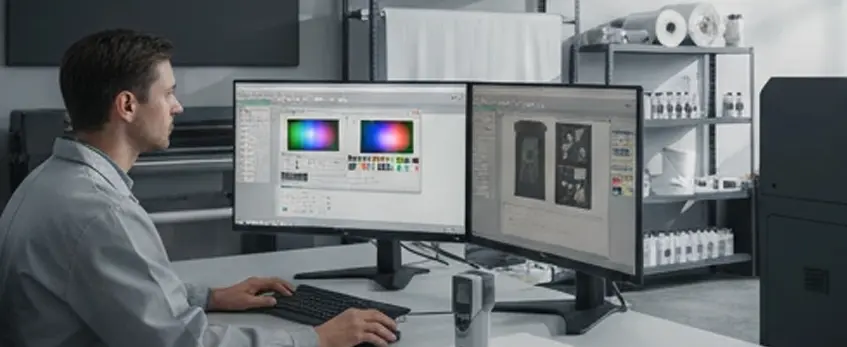
To get consistent and vibrant colors with your jinlong DTF printer, follow these essential best practices:
Monitor Brightness & Room Lighting: Keep your monitor brightness around 120 cd/m² and avoid direct sunlight or harsh lighting in your workspace. Soft, neutral ambient light helps you see colors accurately and reduces eye strain during long print sessions.
Embed the Correct jinlong DTF ICC Profile: Always save your design files with the official jinlong DTF ICC profile embedded. This ensures color accuracy from screen to print and prevents unwanted color shifts. You can find reliable profiles on the official jinlong resources, which are crucial for your specific ink, film, and substrate combinations.
Recommended RIP Settings: When working with RIP software like Cadlink or EKPrint, use the recommended color settings tailored for jinlong DTF printers. Proper ink limiting, total ink coverage, and correct rendering intents ensure smooth prints without issues like bleeding or banding.
Storage and Handling of DTF Film and Powder: Store your DTF films and powders in a cool, dry place away from moisture and direct sunlight. Proper handling extends the life of your materials and prevents color inconsistencies caused by environmental factors — especially temperature and humidity changes.
Following these straightforward steps will help you maintain color consistency and maximize the quality of your jinlong DTF prints. For more tips on high-quality DTF equipment and supplies, check out DTF printing solutions and accessories.
Tools & Investment Guide (2025 Recommendations)
Getting your color management right starts with investing in the right tools. Whether you’re just starting or running a busy shop, there are options to fit your budget and needs.
Budget Level (< $200)
If you’re on a tight budget, there are still decent tools that help improve color consistency without breaking the bank. Basic colorimeters like the Datacolor SpyderX Pro often go on sale near this price range. They help you calibrate your monitor, which is key for better screen-to-print color match. While these won’t create custom ICC profiles for your jinlong DTF printer, they’re a great first step in reducing guesswork.
Professional Level ($300–$1,500)
For pros looking to nail colors every time, investing in advanced devices like the X-Rite i1Display Pro or the Calibrite Display Pro HL is a smart move. These tools offer precise hardware calibration along with software for creating or fine-tuning custom ICC profiles tailored to your jinlong DTF printer, ink, film, and fabric combinations. Pair them with spectrophotometers such as the X-Rite i1Pro or solutions like ColorBase to generate custom profiles and ensure smoother color workflows.
Outsourcing Custom Profiling Services
If you want top-tier color accuracy but lack the time or skill to create ICC profiles yourself, outsourcing is a solid option. Professionals use specialized equipment to produce custom profiles for your exact printer, ink, and film combination—critical for avoiding color shifts like those common when switching DTF film brands or peel types. This service typically costs more upfront but can save time and reduce waste in the long run.
Remember, no matter your investment level, pairing the right tools with the best jinlong DTF transfer film and inks from trusted sources keeps your colors consistent and vibrant every print run.


 English
  Español
  Deutsch
  Français