
No products in the cart.

Jinlong
How DTF Printing Works Step by Step From Design to Heat Press
The Essential Ecosystem: What You Need Before You Print
Before diving into how DTF printing works, setting up the right ecosystem is crucial. This includes hardware, consumables, and software—all tailored for smooth, high-quality results.
Hardware Requirements
| Equipment | Key Features | Notes |
|---|---|---|
| DTF Printer | Modified inkjet or purpose-built DTF printer | Purpose-built printers offer better white ink circulation and reliability. |
| Powder Shaker/Dryer | Automated shaker or manual curing oven | Automated units ensure even powder application; manual ovens require careful monitoring. |
| Heat Press Machine | Industrial-grade, precise temperature control | Essential for consistent heat press temperature and pressure. |
Consumables You Need
| Consumable | Description | Variants |
|---|---|---|
| PET Transfer Films | Base media for printing | Cold peel vs. hot peel films |
| DTF Inks (CMYK + White) | Textile pigment inks for vibrant colors | White ink layer critical for opacity |
| Hot Melt Adhesive Powder | TPU-based powder for ink adhesion | Quality affects wash fastness and stretchability |
Software: The Role of RIP Software
RIP (Raster Image Processor) software is vital in DTF printing. It manages:
- Color profiles to maintain CMYK accuracy.
- White ink generation, creating the white underbase layer.
- Ink limits to avoid bleeding on PET transfer film.
Choosing the right RIP software ensures your prints match design expectations and maintain durability.
Having the right hardware, consumables, and software in place sets the foundation for flawless DTF printing, especially when using trusted products like Jinlong DTF. This ecosystem supports every step, from crisp design transfer to a durable, vibrant finish.
Step 1: Digital Preparation and RIP Processing
Getting your design ready for DTF printing starts with the right digital setup. Here’s what you need to know:
Design Specs
- Resolution: Use 300 DPI for sharp, clear prints.
- Background: Keep it transparent to avoid unwanted edges.
- File Format: PNG or TIFF works best for preserving quality and transparency.
The White Ink Layer
DTF printing relies on a white underbase to make colors pop on any fabric. Your RIP software (Raster Image Processor) automatically generates this white layer. It’s not just printed under the colors but actually on top of the color layer on the film—this is called mirroring. This method ensures the white ink sticks properly and creates a solid base for vibrant colors.
Color Profiling
To avoid ink bleeding on the PET transfer film, adjust your RIP software’s ink limits carefully. Proper color profiling balances CMYK and white ink output, ensuring clean edges and accurate colors without smudging.
| Key Settings | Recommended Values |
|---|---|
| Resolution | 300 DPI |
| File Format | PNG or TIFF |
| Background | Transparent |
| White Ink Layer | Generated by RIP, printed on top |
| Ink Limits | Adjusted to prevent bleeding |
For deeper insight into how white ink works in DTF, check out this detailed explanation on white inkjet ink and how it works. This will help you understand the importance of white ink circulation in your workflow.
Step 2: The Printing Phase
When you start printing, handling the Jinlong DTF PET films correctly is key. Make sure you identify the matte side—the printable surface—before loading it into the printer. Using the right side ensures the ink adheres properly and the final print quality stays sharp.
The print sequence begins with the CMYK pass, where the printer lays down the full-color artwork first. Immediately after, the white ink layer is printed directly on top of the still-wet color inks. This white overprint acts as an underbase, making colors pop on dark or colored garments.
During printing, keep a close eye on the process to catch any issues like banding or printhead strikes early. These can affect the final image quality and waste materials. Proper maintenance and monitoring help keep your prints consistent and vibrant.
For best results, consider using Jinlong’s DTF transfer films designed specifically for this workflow. You can find detailed specs and handling tips on the Jinlong DTF transfer film product page. This ensures you’re working with materials optimized for smooth ink adhesion and transfer.
Step 3: Powder Application (The Adhesive Layer)
After printing your design on the PET transfer film, the next critical step is applying the hot melt adhesive powder. This powder is what helps the ink bond firmly to the fabric during the heat press stage.
Automated Powder Application:
Using a powder shaker unit ensures an even, consistent layer of hot melt adhesive powder over the wet ink. The shaker gently spreads the powder so it sticks only where the ink is still wet, preventing clumps and uneven coverage.
Manual Powdering Techniques:
If you don’t have an automated shaker, you can apply the powder manually using a tray. Carefully dip or sprinkle the hot melt powder over the printed film without touching the wet ink directly. This approach requires a steady hand to avoid disturbing the design.
Removing Excess Powder:
Once the powder is applied, it’s crucial to shake off any excess from the non-printed areas. Leftover powder outside the design can cause unwanted glue specks on your final garment, reducing print quality and comfort.
For best results, use high-quality TPU hot melt adhesive powder designed specifically for DTF printing, like the TPU DTF hot melt adhesive powder that ensures strong adhesion and wash fastness.
Step 4: Curing and Melting
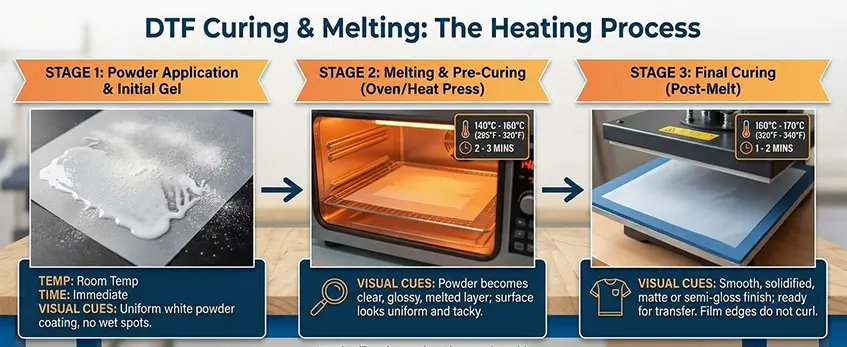
After applying the hot melt adhesive powder, the next critical step is curing and melting the powder to create a strong bond. This involves moving the printed PET transfer film through a curing oven or heat tunnel designed specifically for DTF printing.
The Heating Process
The film passes through the curing oven where consistent heat melts the TPU powder evenly. This step solidifies the adhesive layer, preparing it for transfer to the garment.
Temperature & Time
Typical curing settings range between 160°C to 170°C (320°F to 340°F) for about 2 to 3 minutes. These benchmarks ensure the powder melts fully without damaging the film or ink layers.
Visual Cues for Proper Curing
A correctly cured transfer will have a glossy, orange-peel texture on the powder layer. Avoid curing that leaves a grainy or powdery finish, as it indicates incomplete melting and will affect adhesion and print durability.
For more on how to optimize your curing setup and the role of the DTF curing oven, check out this detailed guide on the complete DTF workflow and powder shaker essentials.
Step 5: The Heat Press Transfer
This is where your design moves from film to fabric. Getting the heat press step right is crucial for a durable, vibrant print.
Pre-Pressing: Remove Moisture
- Always start by pre-pressing your garment for 5-10 seconds.
- This step removes moisture and wrinkles, especially important for cotton fabrics to avoid print issues.
Positioning the Film
- Place the cured PET transfer film carefully on the fabric with the printed side facing down.
- Make sure it’s aligned properly to avoid crooked prints.
Pressing Parameters
| Parameter | Recommended Range | Notes |
|---|---|---|
| Temperature | 150°C – 160°C (300°F – 320°F) | Too hot can scorch fabric or ink |
| Pressure | Medium to High | Ensures good ink adhesion |
| Time | 10-15 seconds | Over-pressing can cause ink bleed |
Applying the right heat and pressure activates the hot melt adhesive powder (TPU powder) on the film, bonding the ink firmly to the garment. This step ensures your print will be durable and stretchable.
For best results, use an industrial-grade heat press machine with consistent temperature control and pressure distribution. This helps maintain the quality of your DTF prints on cotton, polyester, or blends.
Step 6: Peeling and Finishing
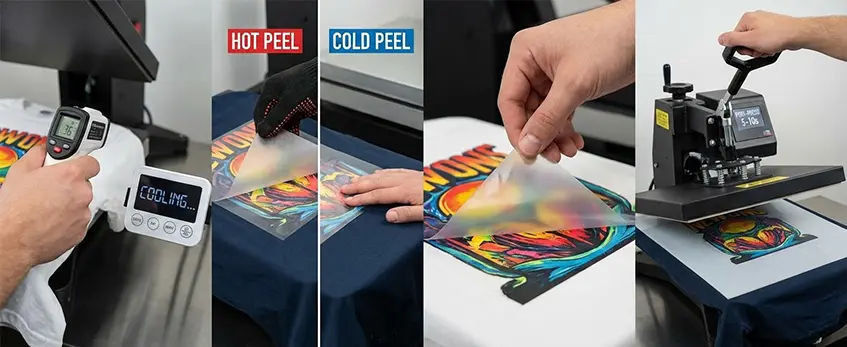
After the heat press transfer, the cooling down phase is crucial. Knowing whether you’re working with hot peel vs. cold peel PET transfer films makes all the difference. For cold peel films, you need to wait until the transfer cools completely before peeling. Peeling too soon risks lifting the ink, ruining your print. On the other hand, hot peel films can be peeled immediately while still warm, speeding up the process.
When peeling, use a steady, smooth motion at a low angle to separate the film cleanly without damaging the design. Avoid jerky or quick pulls to keep your print sharp.
The finishing touch is the second press (post-press). Place a Teflon sheet or parchment paper over the print and press for 5 to 10 seconds. This step seals the ink and hot melt adhesive powder, boosting print durability and giving the design a smooth, matte finish. Proper post-pressing also enhances wash fastness and stretchability, key benefits of the direct to film workflow.
For best results, always follow the specific film and heat press temperature guidelines to maintain print quality and longevity.
Why This Workflow Wins: Versatility, Cost, and Durability
DTF printing stands out because it handles a wide range of fabrics without extra steps like pretreatment. Whether it’s cotton, polyester, blends, leather, or nylon, you can print directly with consistent results. This flexibility makes it perfect for diverse product lines.
Key Advantages
| Feature | Benefit | Notes |
|---|---|---|
| Versatility | Prints on many fabrics without pretreatment | Saves time and labor on garment prep |
| Cost-Efficiency | Lower consumables cost than DTG printing | Uses less expensive PET transfer film and hot melt adhesive powder (TPU) |
| Durability | Excellent wash fastness and stretchability | Jinlong DTF prints hold up well in washing and daily wear |
This workflow’s strength lies in the combination of PET transfer films, hot melt adhesive powder, and DTF inks that create vibrant, long-lasting prints. Plus, using efficient RIP software settings helps optimize ink use and prevent bleeding, keeping costs down.
For those looking to dive deeper into the equipment side, the JL DTF604P DTF digital printer Pro Series offers a reliable, professional-grade option that supports this versatile and cost-effective workflow.


 English
 Español
 Deutsch
 Français